

Create your first event
An event is the page guests book from: a workshop, a class, a show or any session you sell tickets for. Setting one up takes four short steps:
- Create the event (this page).
- Add a venue: where it happens.
- Add ticket packages: what guests can buy.
- Add dates and times: when it happens.
Choose the type
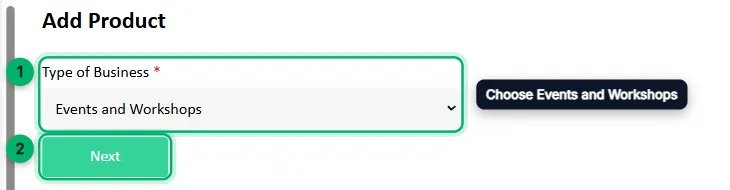
Section titled “Choose the type”In your dashboard, go to Products, or select Set up next to step 3 of the Getting started checklist. Under Type of Business, choose Events and Workshops, then select Next.
Fill in the event details
Section titled “Fill in the event details”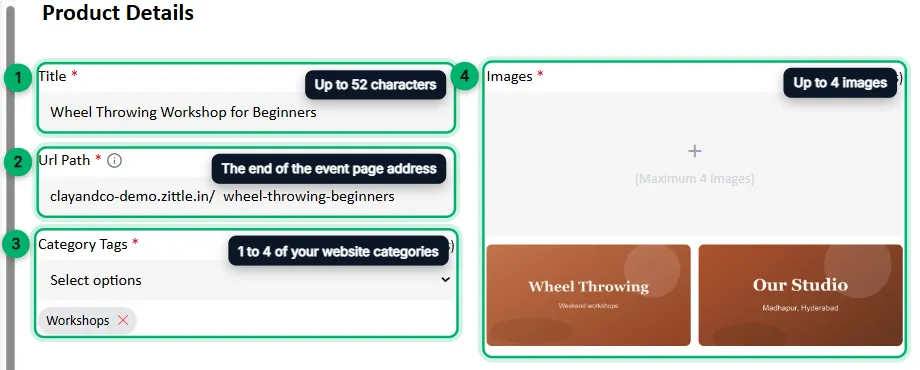
-
Title: the event name guests see, up to 52 characters. For example, Wheel Throwing Workshop for Beginners.
-
Url Path: the end of the event’s web address. Use small letters, numbers and hyphens, such as
wheel-throwing-beginners. -
Category Tags: choose 1 to 4 of the categories you created in Website details. Choose them one at a time from the list. Each appears as a tag below it.
-
Images: up to 4 images for the event page.
-
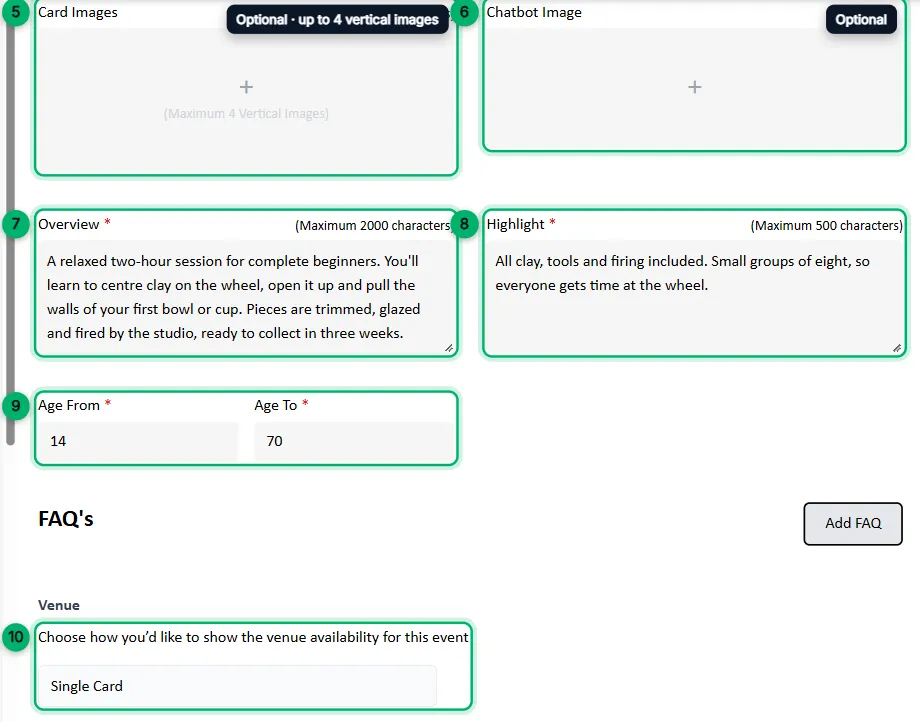
Card Images (optional): up to 4 vertical images. Your website’s event lists show these on the event’s card instead of the main images.
-
Chatbot Image (optional): one image, shown with this event in your Instagram chatbot’s replies. If you leave it empty, the chatbot uses your card images, then your main images.
-
Overview: a full description of the event, up to 2,000 characters. Say what guests will do, what they’ll take home and what’s included.
-
Highlight: a short summary of the best parts, up to 500 characters.
-
Age From and Age To: the age range the event is for.
-
Venue display: if the event runs at more than one venue, choose how guests see them. Single Card shows one card with the venues in a dropdown. Multiple Cards shows a separate card for each venue.
You can also add questions and answers about this event under FAQ’s.
Select Save Changes. You’ll see Successfully saved Product Details.
What’s next
Section titled “What’s next”Add a venue for your event.