

Manage bookings
Every booking, whether it came from your website, a chatbot or an offline ticket, is listed under Bookings in your dashboard.
Find a booking
Section titled “Find a booking”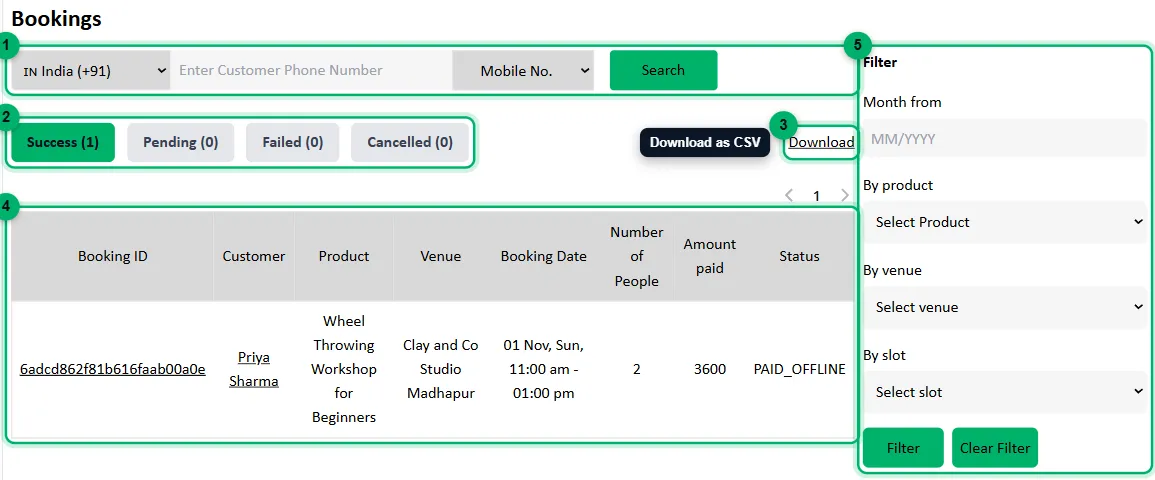
- Search: enter a guest’s phone number, choosing their country first, to see all their bookings. To look up one booking instead, switch Mobile No. to booking ID.
- Status tabs:
- Success: confirmed bookings, paid online or offline.
- Pending: the guest started paying but hasn’t finished.
- Failed: the payment didn’t go through.
- Cancelled: bookings that were cancelled.
- Download: export your bookings as a CSV. See Download your bookings.
- Each booking with its guest, event, venue, session, number of people, amount paid and status. Select a Booking ID to open the booking.
- Filter by month, product, venue or session.
See a booking’s details
Section titled “See a booking’s details”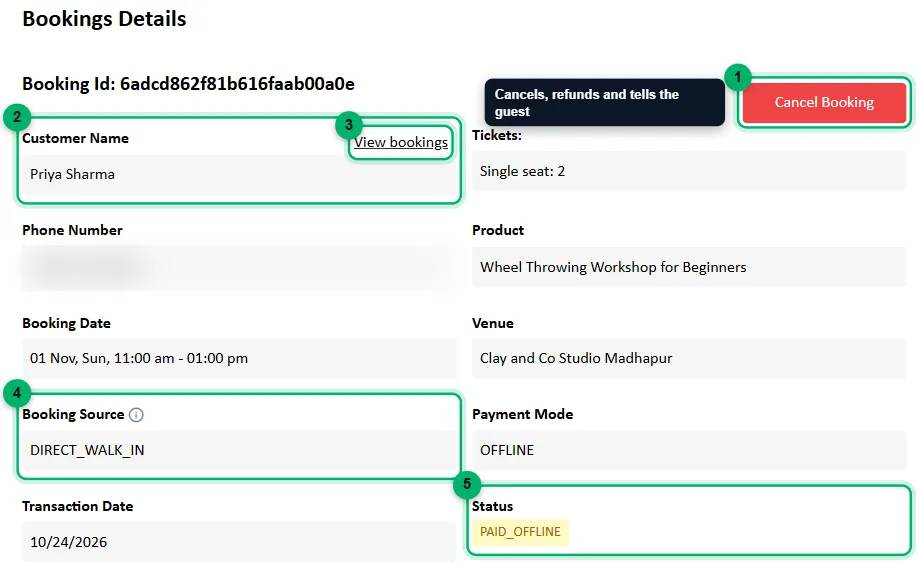
-
Cancel Booking: see Cancel a booking.
-
The guest’s name, with the tickets they bought, their phone number, the event, session and venue.
-
View bookings: every booking this guest has made with you.
-
Booking Source: where the booking came from. For a campaign link, that’s the place and campaign, such as
instagram · bio. Otherwise it’s Website, the WhatsApp or Instagram chatbot, or the source chosen for an offline ticket. If the guest booked from a message Zittle sent for you, Booked From shows which one:- Recovered checkout: they left without paying and came back from Zittle’s reminder.
- Waitlist alert: they tapped Notify Me on a full session and booked when seats opened up.
-
Status: for example
PAID_ONLINE,PAID_OFFLINEorCANCELLED.
Below these, Payment Details breaks down the payment:
- Booking Amount: the ticket price before discounts.
- Discount and Coupon Discount: any package discount and coupon.
- Convenience Fee and Payment Charges: the platform fee the guest paid on top. See Payments, fees and payouts.
- Total Amount to be collected: what the guest still owes you at the venue, if they paid a deposit.
- Total Amount Paid: what the guest paid online, or to you for an offline ticket.
- Paid out to you: once the booking is in a payout, the amount, the date and the payout.
Cancel a booking
Section titled “Cancel a booking”You can cancel a confirmed booking, paid online or offline, until 15 days after its session ends.
-
Open the booking and select Cancel Booking.
-
Confirm. Cancelling can’t be undone.
When you cancel:
- A guest who paid online is refunded what they paid, minus the platform fee. If you’ve already been paid out for the booking, the refund comes off your next payout.
- The guest is told the booking was cancelled.
- The seats become available again, and guests who tapped Notify Me while waiting for seats are told.
The booking then shows its Refund Details, with the refund’s status and amount. Refunds usually reach the guest’s account within 5 to 7 working days. If one takes longer, the guest can trace it with their bank using the reference shown.
Download your bookings
Section titled “Download your bookings”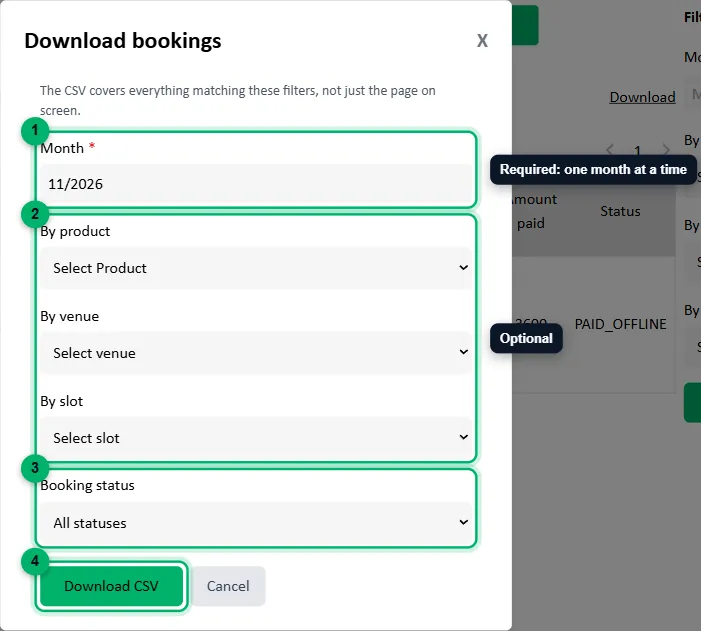
-
Month: the month to export. Each download covers one month.
-
By product, By venue and By slot (optional): narrow the export to one event, venue or session.
-
Booking status: all bookings, or only Success, Failed, Pending or Cancelled.
-
Select Download CSV.
The CSV covers every booking matching your choices, not only the ones on screen. It includes the Booking Source and Campaign columns, so you can compare where your bookings come from.