

Set up your website
Zittle builds your booking website from the details on this page. In your dashboard, go to Website Details, or select Set up next to step 2 of the Getting started checklist.
The page is long, so it’s split into sections below. Fill them in from top to bottom, then select Save Changes once at the end. Your policies are on the same page and have their own guide.
Website theme
Section titled “Website theme”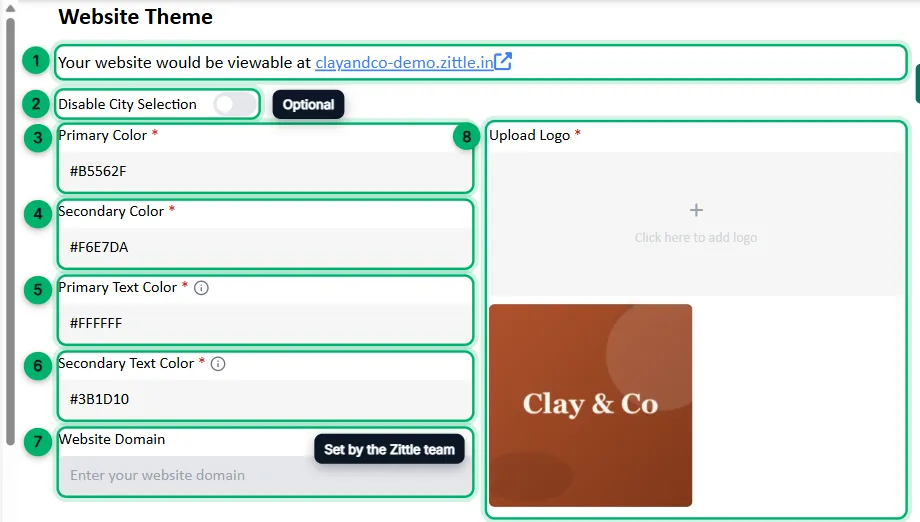
-
After your first save, the top of the page shows your website address, such as
yourstudio.zittle.in. Select it to open your site. -
Disable City Selection (optional): turn this on if you don’t want visitors to pick a city. Your website then shows your events from every city together.
-
Primary Color and Secondary Color: your two brand colours, as hex codes such as
#B5562F. -
Primary Text Color and Secondary Text Color: the colour of text and icons shown on top of your primary and secondary colours. Pick ones that stay easy to read, such as white on a dark colour.
-
Website Domain: to use your own domain, such as
www.yourstudio.com, contact the Zittle team. They set this field for you. -
Upload Logo: select the box and choose your logo image. It also becomes the icon in the browser tab, and the app icon when guests add your website to their home screen. That icon is square, so a square or near-square logo looks best there. A wide logo is shrunk to fit.
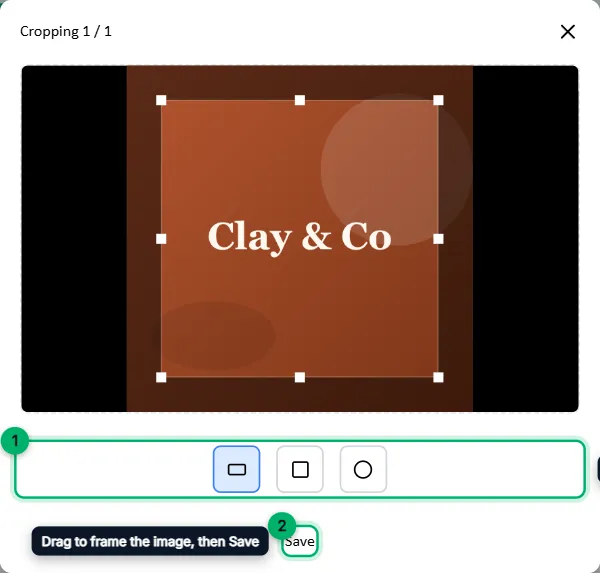
When you upload an image, Zittle asks you to crop it. Pick a shape, drag the frame over the part you want to keep, then select Save. If you upload several images at once, use Next to move through them, and Save on the last one.
Website details
Section titled “Website details”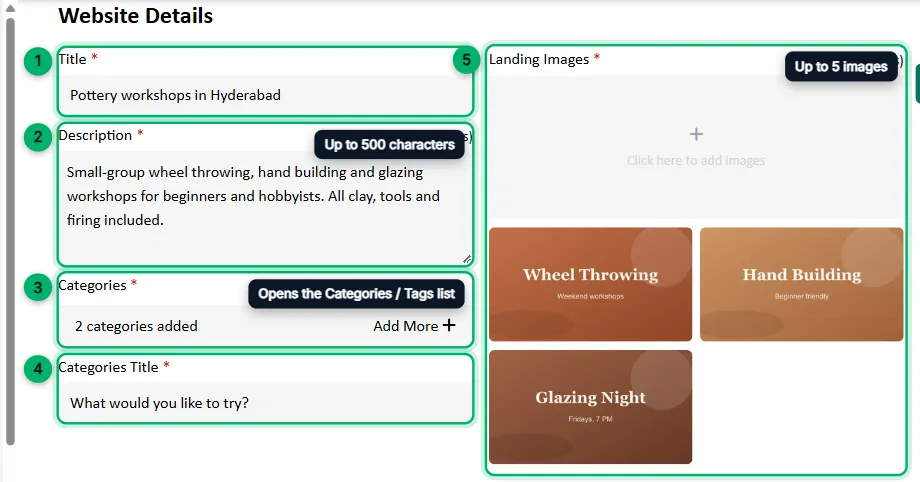
-
Title: the main heading of your website.
-
Description: a short introduction to your business, up to 500 characters.
-
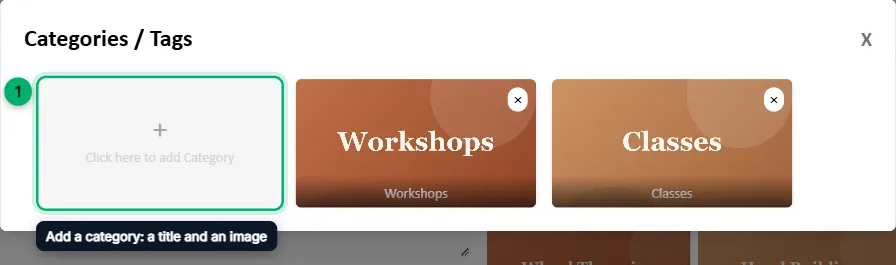
Categories: the groups your events belong to, such as Workshops or Classes. Select the field to open the Categories / Tags list, then add at least one category.
-
Categories Title: the heading shown above your categories, such as What would you like to try?
-
Landing Images: up to 5 images for the top of your homepage.
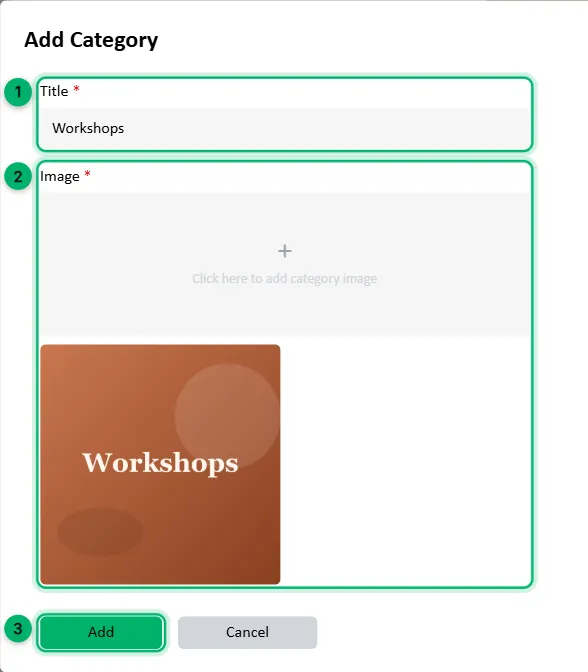
To add a category, select Click here to add Category, enter a Title, choose an Image, then select Add. You’ll pick from these categories when you create an event.
Stats and the homepage button
Section titled “Stats and the homepage button”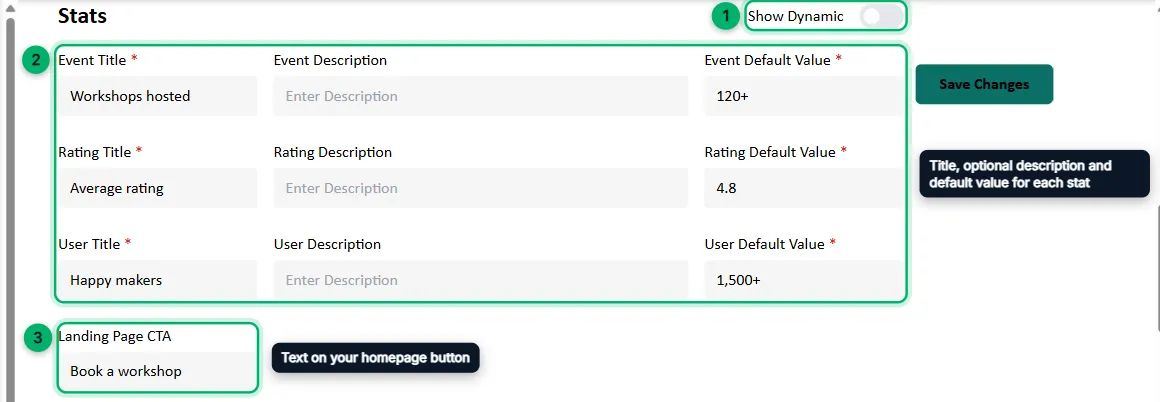
-
Your homepage shows three numbers: one for events, one for ratings and one for customers. For each, enter a Title, an optional Description and a Default Value, such as Workshops hosted and 120+.
-
Show Dynamic: turn this on to show live figures from your Zittle account instead of the default values.
-
Landing Page CTA (optional): the text on the main button of your homepage, such as Book a workshop.
Sections
Section titled “Sections”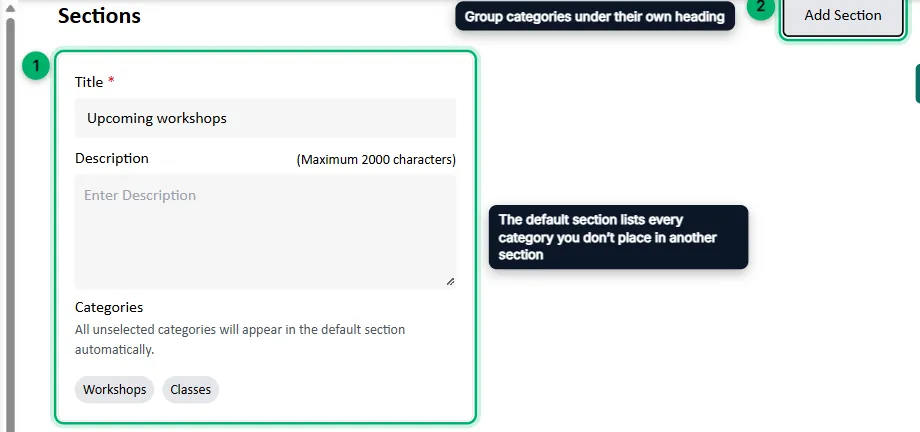
Sections group your categories under headings on your homepage. Give the first section a Title, such as Upcoming workshops. Every category you don’t place in another section appears in it automatically.
To group categories under a separate heading, select Add Section, give it a title, and choose its categories. Each category can only be in one section.
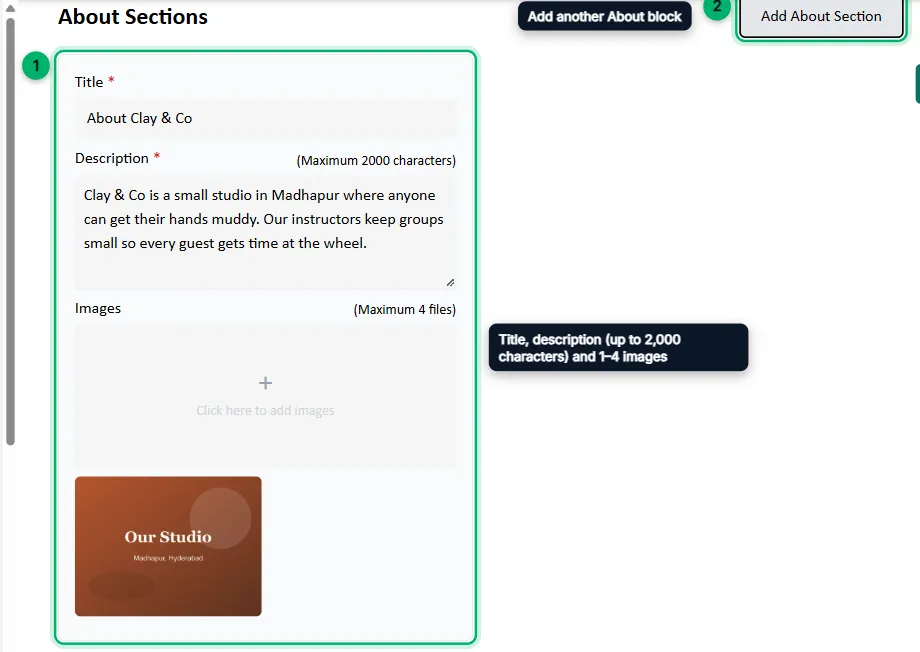
Add at least one About block with a Title, a Description of up to 2,000 characters, and 1 to 4 Images. Select Add About Section for more blocks.
Enquiries and guest details
Section titled “Enquiries and guest details”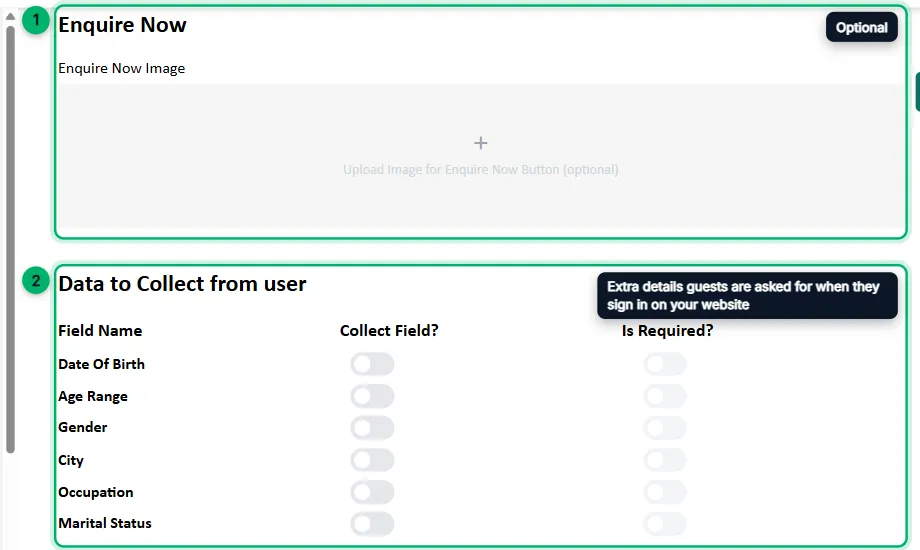
-
Enquire Now (optional): an image for the Enquire Now button on your website.
-
Data to Collect from user (optional): extra details guests are asked for when they sign in on your website: date of birth, age range, gender, city, occupation or marital status. For each, turn on Collect Field? to ask for it, and Is Required? to make it compulsory.
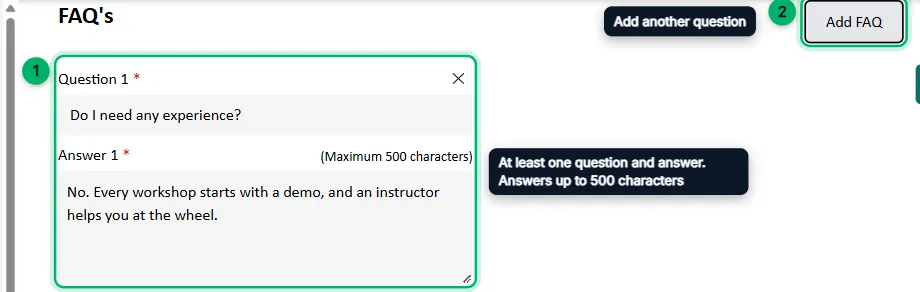
Add at least one frequently asked question with its answer. Answers can be up to 500 characters. Select Add FAQ for more.
Social links, documents and videos
Section titled “Social links, documents and videos”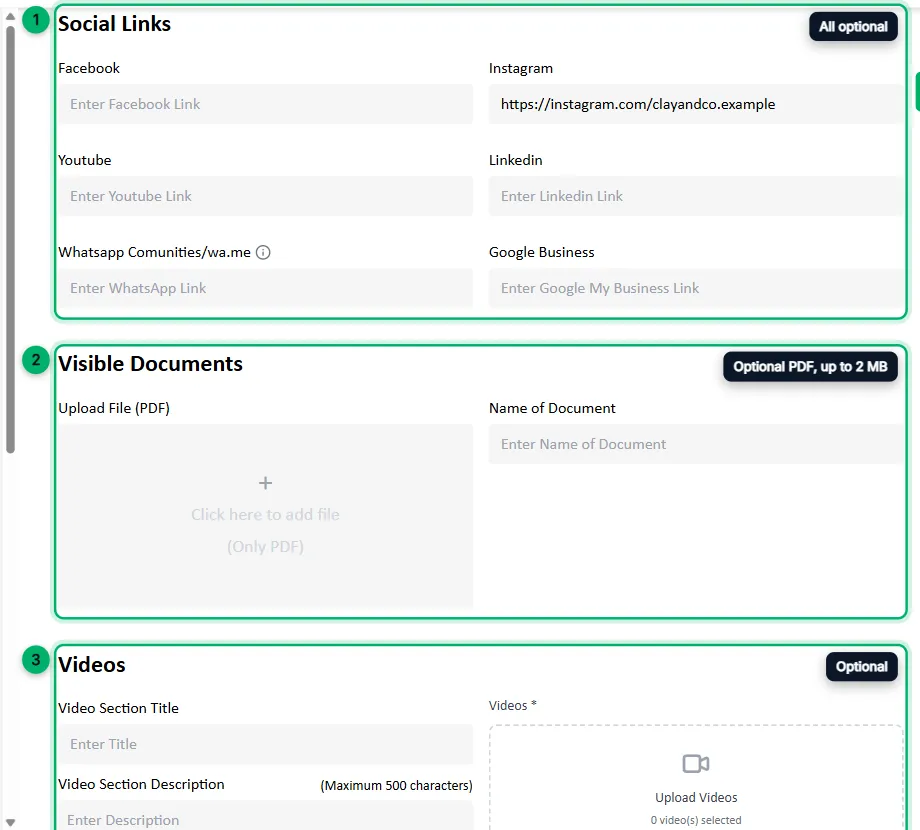
All three are optional:
- Social Links: your Facebook, Instagram, YouTube, LinkedIn and Google Business pages, and a WhatsApp group, community or
wa.melink. - Visible Documents: a PDF of up to 2 MB, with a name, such as a brochure or menu.
- Videos: a title, a description of up to 500 characters, and video files.
Select Save Changes. You’ll see Successfully saved Website Details, and step 2 of the checklist is marked done.