

Create coupons
A coupon is a code guests enter when they book, such as FIRSTCLAY10, for a discount. Use coupons for early-bird offers, first-time guests, partners or festive promotions.
In your dashboard, go to Coupons.
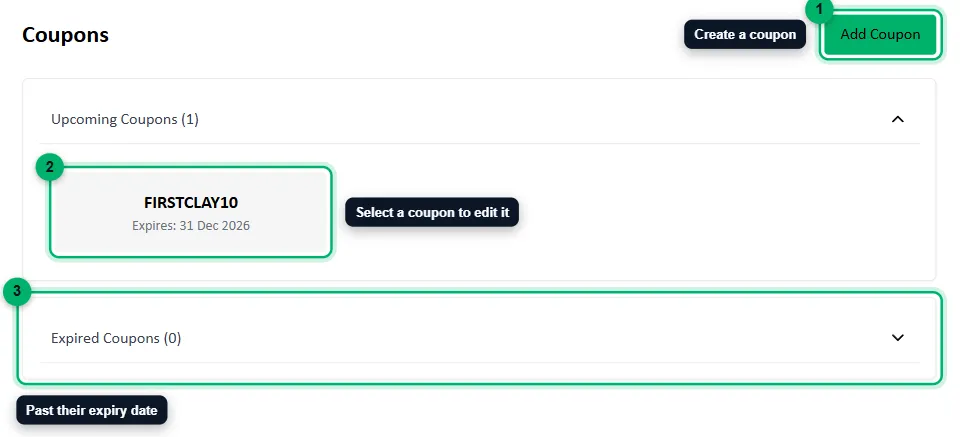
- Add Coupon creates a new coupon.
- Your current coupons are listed under Upcoming Coupons. Select one to edit it.
- Coupons past their expiry date move to Expired Coupons.
Set up the coupon
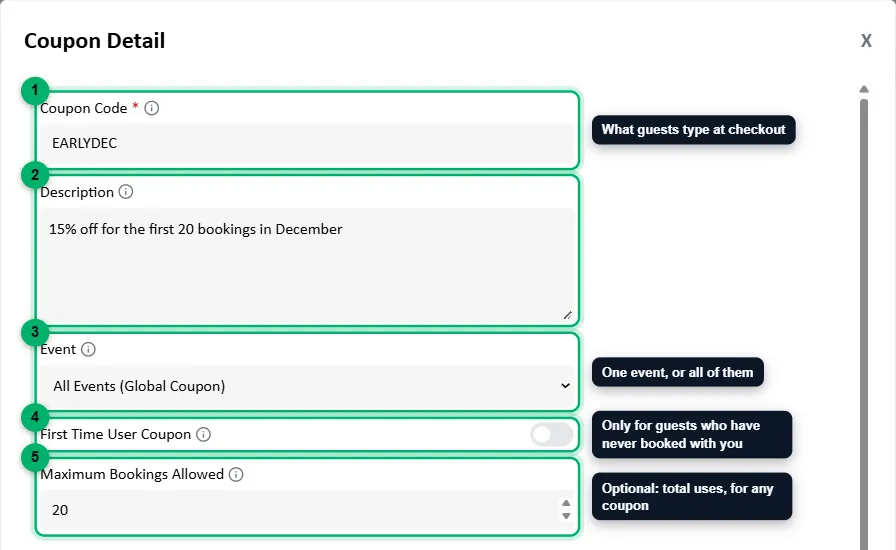
Section titled “Set up the coupon”Select Add Coupon. A Coupon Detail window opens.
-
Coupon Code: what guests type to get the discount.
-
Description (optional): a note about the offer, such as 15% off for the first 20 bookings in December.
-
Event: one event, or All Events (Global Coupon).
-
First Time User Coupon: turn this on to limit the coupon to guests who have never booked with you before. This can’t be changed after you save the coupon.
-
Maximum Bookings Allowed (optional): how many bookings can use the coupon in total, across all guests, such as 20 for the first 20 bookings. Leave it empty for no limit. Once the limit is reached, guests who try the code are told it has reached its usage limit.
-
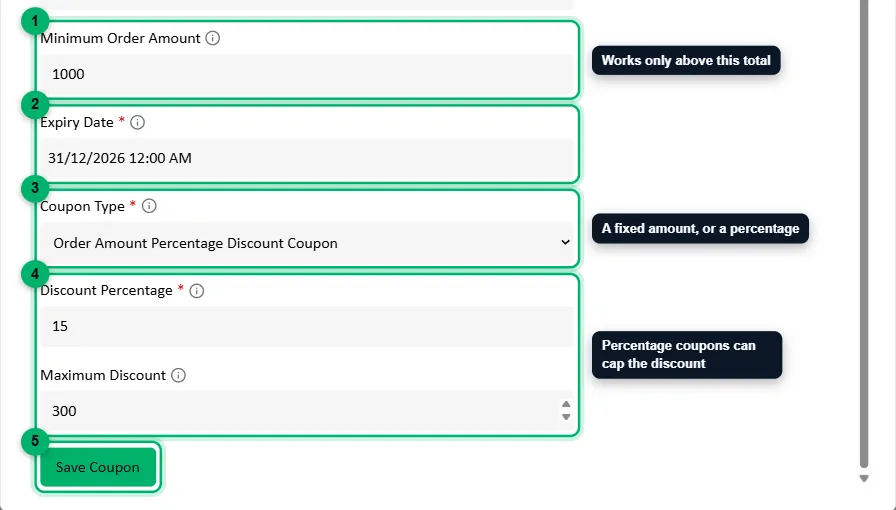
Minimum Order Amount (optional): the coupon only works when the order, after any package discount, is at least this much.
-
Expiry Date: the last day the coupon can be used.
-
Coupon Type: Fixed Discount Coupon takes a set amount off, such as ₹200. Order Amount Percentage Discount Coupon takes a percentage off.
-
For a percentage coupon, enter the Discount Percentage, and optionally a Maximum Discount to cap it. For example, 10% with a ₹300 maximum gives at most ₹300 off a large order.
-
Select Save Coupon.
To remove a coupon, select it and choose Delete Coupon.
How guests use it
Section titled “How guests use it”Guests enter the code under Apply Coupon at checkout on your website, or when they book through the WhatsApp chatbot. The discount shows in their total before they pay, and on the booking in your dashboard.