

Manage your events
Once your events are set up, the Products page is where you look after them day to day: check what’s coming up, change a date’s tickets or price, pause bookings and jump to a session’s bookings.
In your dashboard, go to Products. Keep Events and Workshops selected next to the heading.
Find an event
Section titled “Find an event”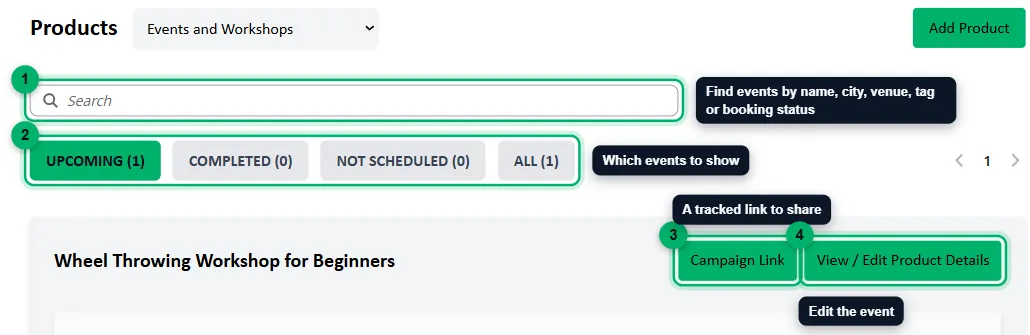
-
Search: filter by Event, City, Venue, Venue group, Category tag or Booking status (paused or open). Choose a filter, then a value from the list. Add more than one to narrow it down.
-
Tabs: which events to show, each with how many there are.
- Upcoming: events with at least one date still to come.
- Completed: events with dates that have already taken place.
- Not Scheduled: events with a venue that has no upcoming dates. Use this to find venues that need new dates.
- All: every event.
An event can be on more than one tab: one with past and future dates is under both Upcoming and Completed.
-
Campaign Link: a link to the event for one place you share it, so you can see which bookings it brought. See Track where bookings come from.
-
View / Edit Product Details: opens the event to change its details, images or FAQs, or to add a venue.
Each event shows its venues underneath, 10 events to a page. On a tab, an event only lists the venues that fit it: on Upcoming, the venues with dates still to come, and on Not Scheduled, the venues without.
Next to an event’s name you may see N waiting, the guests waiting for seats (see Guests waiting for seats), or N of N venues paused.
Change one date
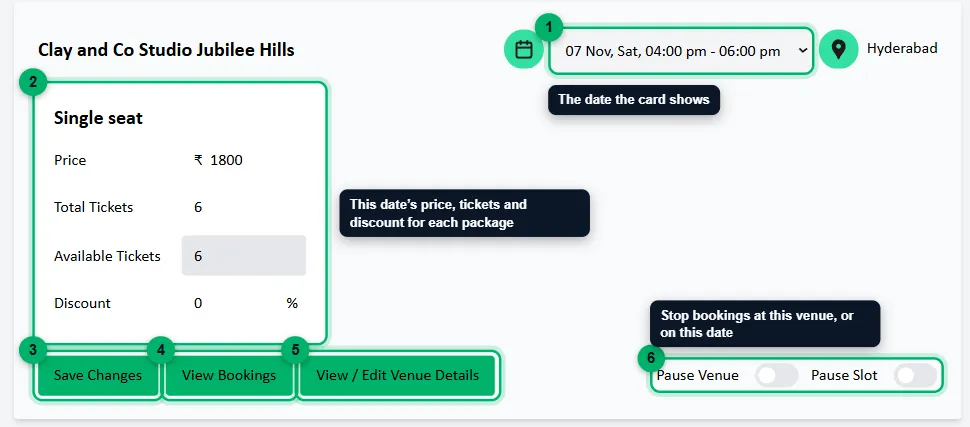
Section titled “Change one date”Each venue has its own card. It shows one date at a time, with that date’s tickets and prices.
-
Choose the date from the list next to the venue’s name. On Upcoming it lists the dates still to come, soonest first.
-
Change the tickets, price or discount for that date. Each ticket package has its own Price and Discount. Where the tickets go depends on how the venue counts seats:
- Per Package: each package has its own Total Tickets, with Available Tickets showing how many are left after bookings.
- Shared across packages: Total Tickets and Available Tickets appear once, above the packages, for the whole session.
-
Select Save Changes. The change applies to this date only. Other dates, and the venue’s own package, stay as they are.
The other buttons on the card:
- View Bookings: opens Bookings filtered to this event, venue and date.
- View / Edit Venue Details: opens the venue, with its packages and all its dates.
- Pause Venue and Pause Slot: stop new bookings at this venue on every date, or on the chosen date only. See Pause or cancel a session.
Dates that have already taken place can’t be changed, so Save Changes is off on Completed and Not Scheduled.
Changes across many dates
Section titled “Changes across many dates”The venue card is for one date at a time. For more:
- The same price or tickets on every date of a venue: change the package on the venue. See Add ticket packages.
- Many dates, events or venues at once, such as a price rise for every weekend or more seats in every studio: use the Bulk Editor.
- New dates: add them to the venue, or in bulk.